
Hello! Here is the latest list of new features and enhancements for your FlowerManager site. Many of these features work together to give you added flexibility in how you can use your site.
Manual Contacts Groups
You can now create groups in Manual Contacts. This will allow you to place individual submissions or import lists into various groups rather than everything just being put in the Manual Contacts. You can also send emails to one or more individual Groups now instead of the entire Manual Contacts list.
To manage Groups just go into Manual Contacts and you now have the option to create a “New Group”. When you import a list or add a manual contact it will ask you which Group you’d like to add it to and you can even make new Groups from within the importer. When you create a group you can name the group whatever you’d like. We’ve moved all of your current manual contacts into a group called “Legacy Contacts”.
Email Signup
We’ve created a new option that allows you to sign-up users for a mailing list. This will allow you the opportunity to market to visitors that haven’t yet created an account. You can optionally offer a coupon to entice users to sign up. All users will be put into a Group you define in Manual Contacts.
You can have a light box pop-up when a visitor that is not logged in visits your site. You can also launch the sign-up lightbox from your Feature Area, the Homepage Specials or anywhere on the site by simply adding a link (#newsletter-signup) that will launch our mailing list lightbox. That way the offer to signup can always be available, even if you choose not to use the auto-launching lightbox on the homepage. Once they submit their email address they are shown a Thank You page and given the opportunity to follow you on Facebook, Google+, Twitter, YouTube and Pinterest.
To configure the Email Signup there’s a Newsletter Settings option under Contacts in the admin that has settings for enabling the signup form, which group they go into, the headline, copy and optional coupon.
The headline and copy on both the form and thank you page are manageable so you can customize the experience to your liking. It’s setup so that if you have the “Show on Homepage” checked it will only show if they aren’t logged in (since we already have their email), and set a cookie that lasts 90 days.
Form Builder
We’ve added the ability for you to easily create forms that can be used anywhere on your site, FlowerManager blog or even on external sites. This will allow you to run contests or any type of page where you want to collect data from a user. You can build a custom form and have the form submit to any Manual Contact Group. Then when you want to email that group you can easily select them when using our Mass Mailer. Your form can be created using any of the following fields:
First Name, Last Name, Field 1, Field 2, Note Field. The custom fields (1,2 and Notes) can be labeled with whatever title you would like. The Email Address field will always be included in the form. There is an “Ajax” option for anyone who wants to code advanced functionality into the form.
You can build a form by selecting “Generate Form” at the top of the Manual Contacts page and choosing the appropriate fields. When you submit the page it will create a text area with the HTML code for you to cut and paste. Just click the “Copy To Clipboard” button to copy the code onto your clipboard. Then paste it into the page (Pagemaker, Blog, etc.) with which you’d like to have a form.
You can choose two layouts for the form or fully change the HTML to suite your needs. We have both a “Stacked” and “Inline” option. Stacked places the field labels above the field and inline places it in front of the field.
Tracking Homepage / Categories
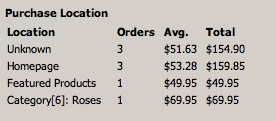
We wanted to get some important additional data that Google analytics doesn’t provide very easily or accurately so we added additional reporting. We wanted to know from where on the site are people buying… not just what they bought. So if they purchased from a Category or Group we’ll track that, if it was from the Homepage (called Featured Products on mobile) or a Keyword Search we’ll track that. If it was from the Price navigation we’ll track that as well as the [min]-[max] price range. We’ll display “unknown” for old orders that don’t have location data or orders that come from places like Pagemaker pages or other areas we haven’t mentioned.
This should give you some insight into where people are or aren’t buying from on your website. This data is now included on the Digital Dashboard.
New Homepage Featured Area
We’ve replaced the homepage feature areas with the newer Feature Areas that work just like the Mobile Feature Areas and Facebook Feature Areas. That will allow you to schedule your slides and also works in a much more friendly way by not grouping slides in containers like the old system. This can be found in the Content section of the Admin with the other Feature Areas.
Your current slides will still be used until you switch over this new system by checking the box in Wide Settings labeled “Use New Feature Area”. Make sure to add slides to the new Feature Area before flipping the switch. The old Feature Areas are in italics and are named “Old Feature Areas” – this is so you can access any old slides you’d like to use.
Receipt Feature Areas
We’ve added the ability to manage the offers on your receipt page. There is also an option to add a slide that will only show to non-members. You can add as many banners as you would like but we suggest two or four as the max if you want any of them to be effective. Less is more.
They work just like all of the other feature areas. You can even schedule them. If you add a Start Date it will show up on that day and show until the End Date. If there is no End Date it will show until you inactivate it. If there are no Start or End Dates it will show immediately and never stop until inactivated. This can be found in the Content section of admin with the other Feature Areas.
Main Navigation Sorting
We’ve removed any restrictions on the sort order of the headers in the main navigation. Occasions was previously set to always be first. It will still place “Birthdays” first, like it always has, if you have a category or group named “birthday” or birthdays”. If you add too many headers the Price, Weddings and About Us navigation will slide off the page so please be sure to review your changes.
Category/Occasion Navigation
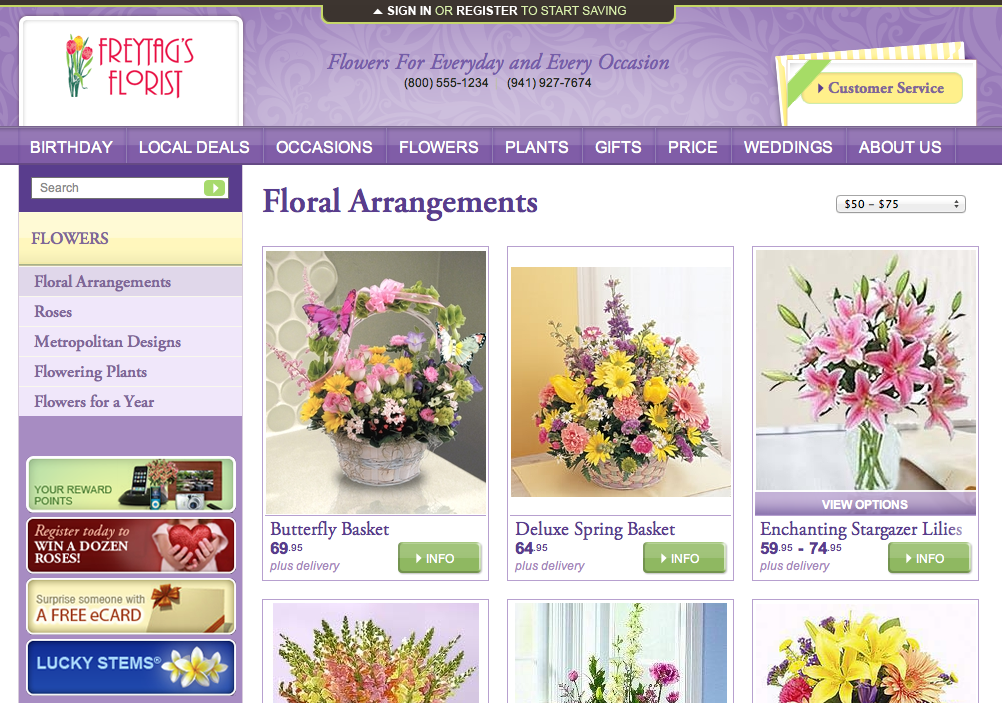
We wanted to simplify the left-hand navigation on interior pages to make it more effective. We felt like users did not notice if they were in a group or category and wanted to make their navigation and filtering choices more obvious.
We’ve removed Occasions from the left navigation bar when viewing a category or group that is not an Occasion to simplify the choices. We’ve added an active state (highlight) to the current group / category that you are currently viewing so you know where you are and what choices are available for further filtering the results. The left-hand headers are now clicking to either the group itself or to the header page that shows the groups / categories under it.
Product Descriptions
Now within the Product Description you can link to blog posts or other pages that make sense and could benefit from the linkage. Product descriptions are very important for conversions as they are what describes the product and helps close the sale if written well. They also have value for SEO yet they are a feature often overlooked by ecommerce admins when allocating time and resources. Our suggestion is to write nice descriptions that help convince the user they are choosing the right product and also consider adding words that will help the page rank with search engines. Make sure your content is unique, as duplicate content is not liked by search engines. Working on quality descriptions is very well spent time.
To add links to your descriptions just add an HTML link as shown in the example below:
<A href=”http://blog.flowermanager.com/>This is the link Text</a>